


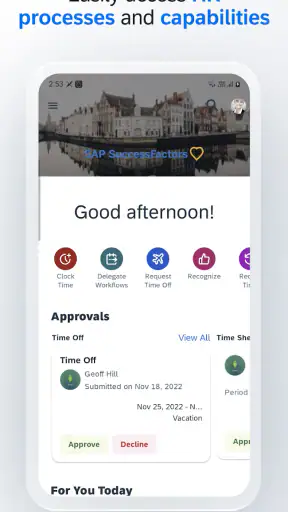
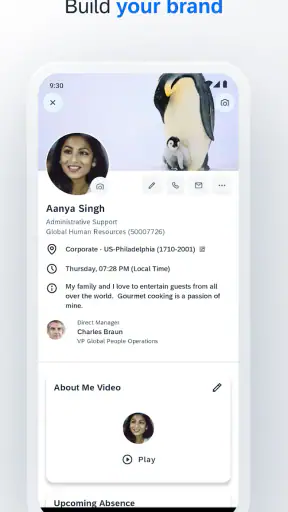
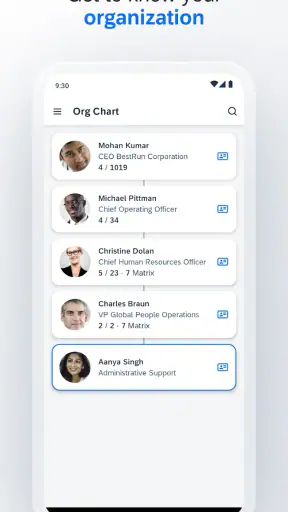
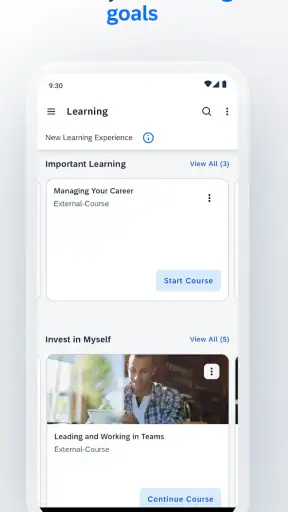
When a business app earns a place on my phone, I expect it to help me complete a work task quickly, not make me feel as if I am troubleshooting an office system between meetings. SAP SuccessFactors Mobile sits in that difficult space. It is a free business app from SAP SE designed to keep employees connected with their organization’s SuccessFactors environment, and its value depends heavily on how that company has configured the service behind it.
That distinction matters from the first launch. This is not a standalone productivity app where anyone can create an account and immediately explore every function. It is a mobile doorway into an employer’s SAP SuccessFactors setup. In my experience, that makes it useful for people who already work in an organization using the platform, while making it a poor choice for someone looking for an independent planner, payroll tool, or general employee app.
The app has been available since August 17, 2020, and its current version is 17.1.4 for devices running iOS or Android 11 and later. Its Everyone age rating and free price make the initial download straightforward, but those details should not be confused with universal access. Your employer’s account, sign-in method, and enabled services determine what you can actually do.
Getting past the first points of friction
Why the first launch can feel more complicated than expected
The most common source of confusion is the difference between installing the mobile client and being ready to use the company’s SuccessFactors account. A successful installation does not automatically mean that the app knows which organization you belong to. Depending on the employer’s arrangement, you may need a company-specific sign-in route, an organization identifier, or an authentication step managed outside the app.
This is why I would not judge the app after seeing an empty screen, a rejected password, or a prompt that seems unfamiliar. Those symptoms can come from an account setup issue rather than a defective mobile interface. Before repeatedly entering credentials, I would check the exact instructions supplied by the employer’s HR or IT team and confirm that I am using the same work account used for the browser version.
Another easy mistake is assuming that a personal email address will work simply because it is the address used for other workplace services. SuccessFactors access is normally tied to the organization’s identity system, so the correct username may be a work email, an employee ID, or another company-defined identity. The app cannot decide which one your employer expects.
The practical lesson is simple: installation is only the first half of setup. The second half is matching the mobile app to the organization’s authentication process. If those two pieces are treated as separate steps, many apparently mysterious login problems become easier to diagnose.
A sensible setup routine before blaming the app
I recommend starting with a short checklist rather than trying random fixes. First, confirm that the phone meets the minimum operating-system requirement. Then install the latest available version, use a stable connection, and make sure the device’s date and time are set correctly. Incorrect time settings can interfere with authentication even when the password is right, especially when a company uses additional verification.
Next, test the same account through the employer’s normal web access if that option is available to you. This comparison is valuable because it separates account problems from mobile problems. If the browser login also fails, reinstalling the app is unlikely to solve anything. If the browser works but the mobile app does not, then the mobile sign-in path, app version, or device environment deserves closer attention.
I would also avoid creating a second account to work around a failed login. Duplicate identities can make it harder for an administrator to determine which profile is connected to employment records, learning activity, approvals, or other company-managed information. The safer approach is to ask the organization which account should be used and whether mobile access has been enabled for it.
For a new employee, this is especially important. A person may have received a welcome email but still be waiting for the SuccessFactors profile to be activated or linked to the correct company. In that situation, the app is simply reporting what the service knows. The useful next step is to contact the internal support channel with the exact message shown on screen, rather than describing the issue only as “the app does not work.”
What to check when the app opens but something is missing
Successful sign-in does not guarantee that every workplace function will appear. SAP SuccessFactors is a broad business platform, and organizations choose which areas employees can access. One employer may make the app central to employee updates and routine requests, while another may use only a narrow part of the system.
That means a missing menu is not automatically a bug. It may reflect the company’s configuration, your role, your employment status, or a workflow that has not been assigned to your account. I would compare what appears in the mobile app with what appears in the web version, then ask the internal administrator whether the feature is supposed to be available on mobile.
This is one of the app’s main trade-offs. Its connection to a company’s existing SuccessFactors environment can make it convenient, but it also means the experience is not identical for every employee. Reviews from different organizations can sound contradictory because they may be describing different configurations rather than different versions of the same product.
Recovering a stalled task without losing context
Business tasks often fail at an inconvenient moment: a form stops loading, a page returns to the sign-in screen, or an approval appears incomplete after the network changes. My first recovery step would be to note what I was doing and whether the action had already been submitted. Repeating a submission immediately can create uncertainty about whether the request was duplicated.
After that, I would move to a reliable connection, reopen the app, and check the relevant status before trying again. If the task is visible as completed, pending, or awaiting approval, the safest choice is usually to leave it alone and confirm with the responsible team if the result is time-sensitive. If it has disappeared entirely, the web interface can help establish whether the mobile session failed or the service did not receive the action.
Closing and reopening the app is a reasonable first reset. Updating it is also sensible when a newer release is available for the device. Reinstalling should be a later step, because it does not repair an incorrect account configuration and may remove locally retained session information that would otherwise help support staff understand the problem.
When contacting support, I would include the device type, operating-system version, app version, approximate time of the failure, the section involved, and the exact wording of any error. I would not send a password or unnecessary personal records. This creates a much more useful report than a screenshot with no explanation, while keeping sensitive workplace information out of casual messages.
Why a browser can be the better recovery route
The mobile app is convenient for quick checks and short actions, but a browser may be the better fallback for a complicated form, a long review, or a workflow that requires careful comparison of several details. A larger screen makes it easier to see the full context, and the web environment may expose administrative guidance or account options that are not part of the mobile experience.
I do not see that as a failure of the app. Mobile software is best when the task is naturally brief: checking an update, responding to a simple request, or staying aware of an item while away from a desk. If a process involves extensive text, multiple attachments, or detailed record review, I would start it on the web whenever that route is available and use the phone for monitoring or follow-up.
This division of labor is one of the most useful ways to approach SuccessFactors Mobile. Instead of expecting the phone to replace every desktop workflow, I treat it as the practical access point for work moments that do not justify opening a laptop. That makes the experience feel faster and also reduces frustration when a complex task is awkward on a small screen.
When the service, account, or company process is the real problem
Some failures have nothing to do with the installed application. A company service may be undergoing maintenance, an employee record may be waiting for activation, or an internal workflow may have been configured incorrectly. Network restrictions can also matter, particularly when a workplace connection handles authentication differently from a home connection or mobile network.
A useful test is to compare several conditions without changing everything at once. Try the same account through the normal web route, check whether another network behaves differently, and ask a colleague whether the same company service is available to them. This does not prove the cause by itself, but it helps identify whether the problem follows the phone, the account, or the organization.
I would be cautious with advice that tells employees to disable security protections, install unofficial copies, or share credentials. Those steps can create a much bigger workplace risk than the original login problem. Safe troubleshooting should stay within the official app, the organization’s approved access methods, and the company’s support process.
Who will get the most from the mobile experience
The strongest audience is an employee whose organization already relies on SAP SuccessFactors and has made relevant mobile functions available. For that person, keeping the service on a phone can reduce the need to find a desktop for every small interaction. It is also useful for people who move between locations, work partly away from a desk, or want a quick way to remain connected with workplace activity.
Managers may also appreciate mobile access when their organization has configured approval-oriented workflows for them. The benefit is not that every management task becomes ideal on a phone; it is that a time-sensitive item can be reviewed when a laptop is not nearby. I would still use a larger screen for decisions that require extensive context or careful documentation.
New employees should view the app as a companion to onboarding rather than a replacement for it. If the organization has not explained how accounts, profiles, and mobile access are handled, the app cannot fill in those gaps. Asking for the official setup path early is faster than experimenting with several personal credentials.
Who should choose a different kind of app
I would skip this app if I wanted an independent tool for personal scheduling, freelance invoicing, household records, or general task management. It is not designed to be a universal business organizer. Its usefulness comes from connection to an employer’s SAP SuccessFactors environment, so someone without that relationship has little reason to install it.
I would also hesitate if my main work involves long documents, detailed data entry, or complex administrative review. A desktop browser is usually more comfortable for those jobs, and a dedicated tool may be better when the organization does not use SuccessFactors at all. The app is most convincing as an extension of an existing company process, not as a replacement for every other workplace application.
How it compares with ordinary workplace alternatives
Compared with a general employee portal, the main advantage here is continuity with the company’s SuccessFactors setup. You are not moving information into a separate personal system just to check a work-related item. That can reduce duplication and keep actions connected to the organization’s existing records and processes.
Compared with email, the app can be a more structured place to find work-related items when the employer has configured it that way. Email is flexible, but it can scatter requests, reminders, and updates across a crowded inbox. The SuccessFactors route is more useful when the task belongs inside a defined employee workflow rather than a conversation.
Compared with a browser shortcut, the mobile app offers a more purpose-built phone experience, but the browser remains valuable for recovery and complex work. I would not choose one permanently. The best arrangement is often mobile for quick awareness and straightforward actions, with the web version available when the screen, account settings, or workflow detail demands it.
What the ratings suggest, and what they cannot tell you
The app holds an average rating of 3.3 from roughly forty-five thousand ratings, with more than six hundred written reviews and over five million installs. Those figures show broad use, but they should be read carefully. A workplace app’s perceived quality is shaped by the employer’s configuration, login system, and support process, so a rating can reflect organizational friction as much as the mobile interface itself.
That is why I would pay attention to the pattern behind complaints rather than treating the average as a final verdict. Reports about sign-in, unavailable functions, or inconsistent access may point to deployment differences. Reports about navigation or repeated mobile errors are more directly relevant to the app experience. For a prospective user, the most important question is whether the employer actively supports this mobile channel.
My practical verdict after weighing convenience against friction
SAP SuccessFactors Mobile is worthwhile when it matches a real workplace need. I like the idea of having a company-connected business service available during the small gaps of the day, and the free download removes an obvious barrier for employees whose organizations already use the platform. The app can save time when the task is short and the account is correctly configured.
Its weakness is equally clear: the mobile client cannot compensate for unclear onboarding, incomplete account provisioning, missing company permissions, or a service-side problem. That dependence can make the first experience feel less polished than a standalone app. It also means that two employees can have very different opinions while both are being fair.
My recommendation is to install it if your employer specifically supports SAP SuccessFactors Mobile and gives you a clear sign-in route. Before relying on it for an important deadline, test the account, learn whether the same task is available on the web, and keep the internal support contact handy. If the organization does not use SuccessFactors, or if you need a general business organizer, choose a tool built for that purpose instead.
For the right employee, this is a practical companion rather than an all-purpose work suite. I would use it for quick access and routine mobile moments, switch to the browser for demanding workflows, and treat setup information as part of the product experience. With that realistic expectation, the app is easier to trust—and much easier to troubleshoot when something goes wrong.


